
step by step
El İşi Dünyası User Guide
From the first time you open the app to sharing your first project, from earning ilmek to joining giveaways: it's all here, in 23 short steps, in order.
- 23 steps
- 5 chapters
- 6-minute read
hello!
What is El İşi Dünyası?
El İşi Dünyası is a free social app made for everyone who loves handcrafts. Share your knitting, crochet, amigurumi, needle lace (oya), lace, cross-stitch, punch needle, jewelry, sewing and felt projects, get inspired by other makers' work and meet fellow craft lovers.
Think of it as Instagram for handcrafts, except that everything here is made for handmade work: categories, patterns, the ilmek system and giveaways. Posts are only visible inside the app, so all you need to start exploring is to download it.
- Completely free
- iOS & Android
- In 6 languages
Chapter 1
Getting started
Install the app, create your account and set up your profile. The first stitches are always the most exciting!
- Step 1
First launch: welcome screens
The first time you open the app, a few short welcome screens greet you. They explain what El İşi Dünyası is and introduce sharing, exploring and the community. Tap “Next” or “Start” to move on to the sign-in or sign-up screen.
- Step 2
Creating an account
You need a free account to use the app. On the “Sign Up” screen, create your account with your email address, a username and a password, then complete your name, surname and email verification. The invite code (referral code) field is optional: if a friend gave you a code, enter it here; otherwise just leave it blank and continue.
- Step 3
Signing in and forgotten passwords
If you already have an account, sign in on the Sign In screen with your email address or username and your password. Forgot your password? Tap the “Forgot Password” link on the sign-in screen and enter your email address. After verifying your email with the reset link we send you, you can set a new password.
- Step 4
Home screen: the tabs at the bottom
Once you're signed in, you'll see five tabs at the bottom of the screen: Home, Explore, + (Create) in the middle, My Friends and My Profile. Home shows weekly lists and activity cards, Explore shows all posts, My Friends shows posts only from people you follow, and My Profile holds your own details and settings.
- Step 5
Complete and edit your profile
Use Edit Profile on the My Profile tab to upload a profile photo and update your name, surname and username. Don't forget to add a short bio about yourself. Other users see your profile together with your posts and your follower and following counts.
- Step 6
Choosing a language
The app is available in six languages: Turkish, English, German, Spanish, French and Italian. To change the language, go to Profile → Settings → Language and pick the one you want; the interface and notifications switch to the language you chose.
Chapter 2
Explore and interact
Browse thousands of handmade projects, save the ones you love, follow your favorite makers and join the conversation in the comments.
- Step 7
Explore: filter, sort and search
The Explore tab shows handmade posts from all users. Use the filter to choose a category and subcategory (knitting, amigurumi, lace and more). Sorting options: newest, most liked, most saved, most viewed, most commented and most rated. Type a word into the search box to search post titles.
- Step 8
Search: projects and people
The search screen has two tabs: Projects and Users. Project search matches post titles; in user search you can look people up by first name, last name or username. You can follow someone right away, open their profile to browse their posts or send them a message.
- Step 9
Following and gaining followers
Tap the Follow button on someone's profile to follow them; tap it again to unfollow. Followers are the people who follow you, Following are the people you follow; both counts appear on your profile. Posts from the people you follow appear in the My Friends tab, newest first. You get a notification whenever someone new follows you.
- Step 10
Post details: likes, saves, comments and ratings
Tap a post to open its detail page. There you can like it (heart), save it (add it to your favorites), write a comment and rate it from 1 to 5 stars. The numbers of likes, saves, comments and views and the average rating are shown here too. Your saved posts are listed under Profile → Favorites → Saved, and the posts you liked under Liked.
- Step 11
Comments: write, reply, like
Type in the comment field on a post's detail page and send it to add a comment. When you reply to a comment, your answer appears right below it. You can like comments and delete your own. The post's owner and the person whose comment gets a reply receive a notification.
Chapter 3
Sharing and favorites
Share your own handmade work, collect inspiring posts and never miss what the people you follow are making.
- Step 12
Share your own project
Tap the + button in the middle to create a new handmade post. Upload photos or a video, write a title and a description (you can add your pattern to the description too), then choose a category and subcategory. You can add several media files (up to 250 MB). While creating posts you may need to watch a short ad a few times a day (e.g. 2–3). Once the daily ad limit is reached, no more ads appear that day and you can keep sharing.
- Step 13
Favorites: saved and liked posts
The Profile → My Favorites page has two tabs: Saved (posts you added to your favorites) and Liked (posts you liked). Tap a post in the list to open it, or remove it from your saved or liked posts whenever you like.
- Step 14
My Friends: posts from people you follow
The My Friends tab lists only posts from the users you follow, newest first, as large cards in a single column. Not following anyone yet? Find accounts you like in Explore or Search and start following them.
Chapter 4
Ilmek and rewards
Collect ilmek, the app's virtual currency, and spend it to boost your posts and join giveaways.
- Step 15
Spin the wheel and daily bonus
Wheel: you get one free spin every day. Watch an ad to earn one more, for up to two spins a day. Every spin wins you ilmek. Daily bonus: watch a short ad every day to earn a set amount of ilmek. You can check the status of your wheel and daily bonus on the activity cards on the Home tab.
- Step 16
Ilmek screen and history
Open the ilmek screen (My Points) from your profile or the Home tab to see your current ilmek balance. The ilmek history lists all your earnings and spending (wheel, invites, daily bonus, post boosts, giveaway entries, welcome gift and more) with date and type.
- Step 17
Your invite code and inviting friends
On Profile → Settings → My Invite Code you'll find your personal invite code and a shareable invite link. Invite friends with the Share button: every time someone you invited shares their first project, you earn ilmek. Your total invites and the ilmek you've earned are shown on the same page.
- Step 18
Boost your post
You can spend the ilmek you've earned to boost your posts. Tap “Boost” (Promotion) on your post's detail page or in the post menu; you'll see how many days the boost lasts and how much ilmek it costs. Boosted posts appear higher in Explore and related lists, so you get more views, likes and followers.
- Step 19
Join giveaways
New giveaways are announced on the Home tab or in the related section. Tap a giveaway to see the prize, the entry cost and the end date. You pay the entry cost in ilmek; once you confirm, your ticket is added to your account. Giveaways are entered with in-app ilmek only; no real money is involved. When a giveaway ends, the winners are listed, and if you win, you get a notification.
Chapter 5
Profile and settings
Add your social media and shop links, and manage your notifications, safety and account settings.
- Step 20
Links on your profile: social media and shops
Add your social media and shop links under My Profile → Links (My Links): accounts like Instagram, Facebook, Pinterest and YouTube, or Shopier, Etsy, Trendyol and your own website. If you sell your handmade work, visitors can go straight to your shop through these links. Your links are visible to everyone who visits your profile.
- Step 21
Notifications
The Notifications tab shows comments, new followers, invite rewards, giveaway results and general announcements. Turn on push notifications to hear about them right away. You'll also find an unread counter and a “Mark all as read” option there.
- Step 22
Blocking and reporting
To block someone, go to their profile and choose “Block” from the menu. People you block are listed under Profile → Settings → Blocked Users, and you can unblock them at any time. If you come across an inappropriate post, use “Report Abuse” or “Report Copyright” in the post menu to let us know; our team will review it.
- Step 23
Settings: password, email, account and help
Under Profile → Settings you can change your password and email address, temporarily freeze your account or delete it permanently. Security options, agreements (the KVKK privacy notice and the membership agreement), the Help Center and the FAQ are there too. If you have a problem or a request, create a support request to reach our team.
Couldn't find what you were looking for?
Reach us with a support request in the app or through our contact page; we're always happy to help.
let's get started!
Ready to share your handmade work?
Thousands of craft patterns, recipes and a warm community are waiting for you. Download the app for free and cast your first stitch today.


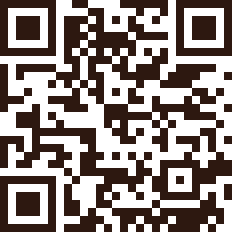
Scan with your phone
Point your camera at the code to open the app store.